/
3dsmax - Exporting, Batch Rendering and Scripting
3dsmax - Exporting, Batch Rendering and Scripting
- Systems Next Limit (Unlicensed)
- Anonymous
Owned by Systems Next Limit (Unlicensed)
17 May, 2018
Analytics
Loading data...
Exporting Scenes to MXS
There are several ways of exporting a Max scene to Maxwell's MXS format:
- Using the Export All and Export Selection commands in the File menu. This allows you to export animations (one MXS file per frame).
- By enabling the Persistent MXS render option and rendering.
- Using the Export Geometry To MXS (
 ) button in the shelf. Note that this will not write render options and environment settings, it will only export the selected objects and their materials.
 - Using the maxwellExportMXS or maxwellPacknGo functions from maxscript.
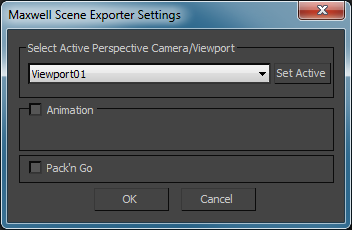
When using the Export commands in the File menu, the following options are available:
- Select Active Perspective Camera/Viewport: select the camera or viewport to be used as active camera when exporting the mxs file.
- Animation: export the sequence of frames defined in the Time Output group in the render options panel. This setting is ignored if the time setting is set to Single. The frame number will be inserted into the file name typed in the export dialog, using all the format, padding and renumbering settings from the global render options.
- Pack'n'Go: copy the dependencies (textures, IES files etc.) next to the exported MXS file.
The maxwellPacknGo function does not have any parameters because it relies on a GUI to get the parameters from the user. As such, when calling the maxwellPacknGo function, the following prompt will appear:
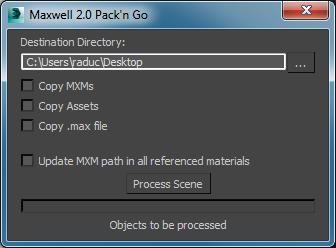
The meaning of the parameters are as follows:
- Destination Directory: The place where the mxs file and assets are copied to.
- Copy MXMs: Control whether to copy mxm files from referenced mxm materials to the Pack'n'Go directory.
- Copy Assets: Control whether to copy asset files (images, IES, IOR, bin, abc, mxs etc)
- Copy .max file: Save a copy of the current max file in the Pack'n'Go directory. The current max file is not affected.
- Update MXM path in all referenced materials: Update referenced materials to use the MXM files copied to the Pack'n'Go directory
The scene can also be exported from maxscript via the maxwellExportMXS function, this can be useful to create script files to batch export max scenes. The maxwellExportMXS function takes the following parameters:
- camera: the camera node to use as the active camera when exporting the MXS.
- output: the name of the output mxs file
- selectedObjects: controls whether the function only exports only the selected objects or all the objects in the scene.
- animation: controls whether to export a single frame or every frame in the animation range specified by the Time Output render settings in max.
- appendFrameNrToImg: controls whether to append the frame number to the output image.
- packngo: if set to true the function will also call the pack n go function with the output directory as the directory in which the mxs file is exported.
Related content
3dsmax - Exporting, Batch Rendering and Scripting
3dsmax - Exporting, Batch Rendering and Scripting
More like this
Maya - Exporting, Batch Rendering and Scripting
Maya - Exporting, Batch Rendering and Scripting
More like this
Maya - Exporting, Batch Rendering and Scripting
Maya - Exporting, Batch Rendering and Scripting
More like this
Cinema - Scene Object
Cinema - Scene Object
More like this
Cinema - Scene Object
Cinema - Scene Object
More like this
Modo - User Interface
Modo - User Interface
More like this